 Lekto
Lekto
Two-week timetable
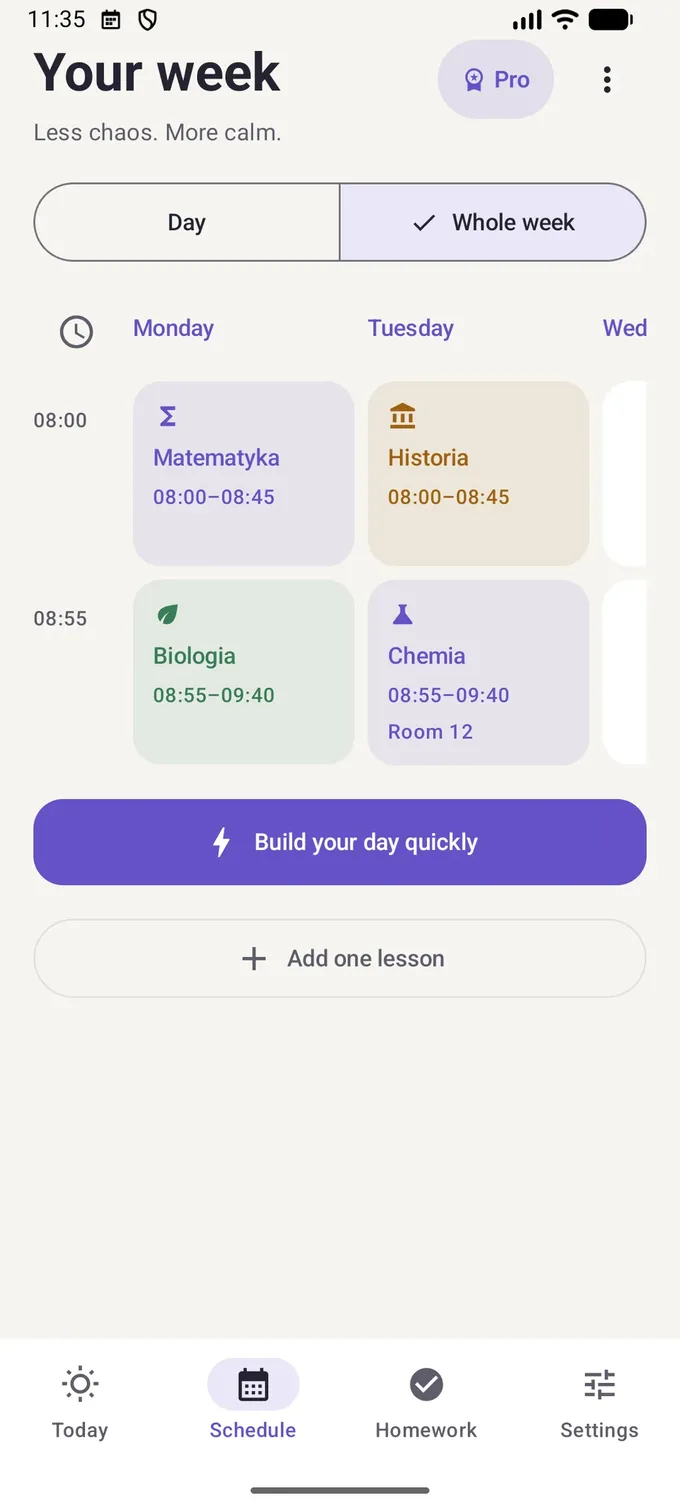
Week A / week B timetableLekto remembers which week it is.
Set once which lessons repeat every week and which only in odd or even weeks. The day view and the widget always show the right lessons.
- Weeks counted automatically
- Flipped parity
- Free
Step by step
How to set up a week A / week B timetable in Lekto
Add a lesson
In the lesson editor choose the repeat: every week, even weeks only or odd weeks only.
Check the current week
The timetable screen shows whether this is an odd or an even week.
Flip it if needed
If your school counts differently, flip the parity with one switch.
How are odd and even weeks counted?
Most schools that use odd and even weeks go by the week number of the year (ISO 8601): weeks 2, 4, 6… are even and 1, 3, 5… are odd. Lekto does the same and handles the turn of the year correctly, when week 53 is followed by week 1.
Some schools count from the start of the school year or simply announce which week is "A". In that case, flip the parity in the settings and the timetable switches immediately.
Odd and even week questions
How do I know if it's an even week?
Lekto shows it on the timetable screen. By default it uses the ISO week number; if your school counts the other way, flip the parity in the settings.
What happens at the turn of the year?
A year can have 52 or 53 weeks. Lekto follows ISO, so after week 53 it correctly moves on to week 1.
Can a lesson happen every other week?
Yes – set it to "even weeks only" or "odd weeks only".
Guides
Student guides
Practical advice on timetables, studying and the school year.
The first guides are on their way.
Set up your timetable once. Lekto does the rest.
Take a photo of your timetable, check the result and add a widget. Free, no account, no ads.
Lekto for Android is coming to Google Play very soon.